|
Getting your Trinity Audio player ready...
|
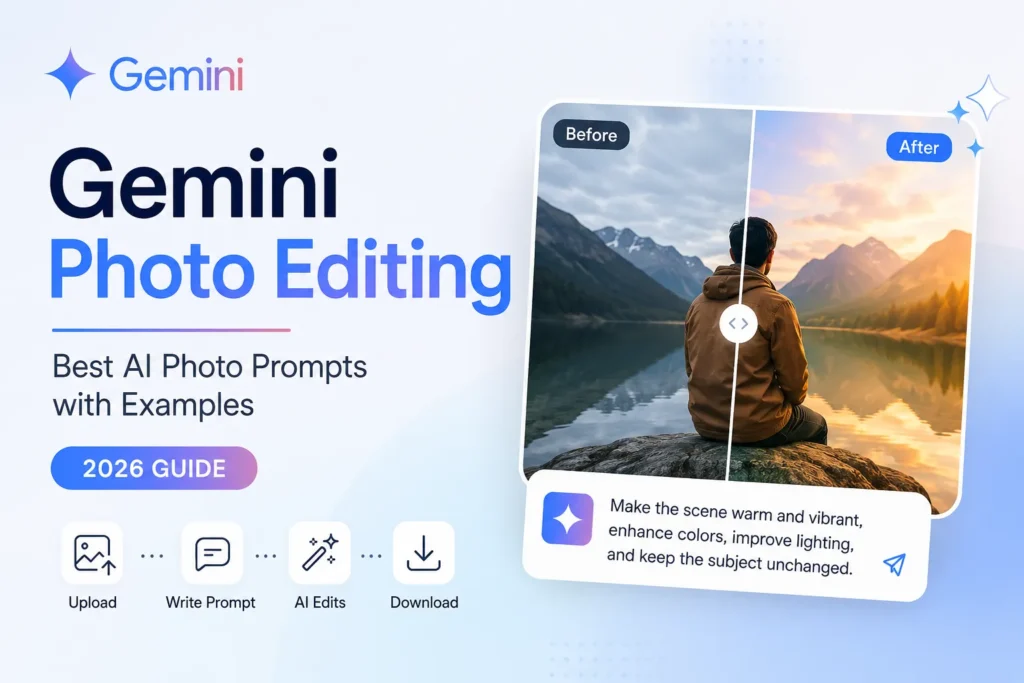
Artificial intelligence has changed the way people edit photos. Tasks that once required advanced software and years of editing experience can now be completed by simply describing what you want in plain English. Whether you want to improve a portrait, replace a background, remove distractions, or create eye-catching social media images, AI can handle many of these tasks in just a few steps.
One of the most popular tools for this purpose is Google Gemini. Along with its growing AI capabilities, Gemini makes it easier to edit images using natural language instead of complex editing tools. Rather than adjusting dozens of sliders, you can upload a photo and describe the changes you want.
This approach, known as Gemini Photo Editing, is especially useful for beginners, content creators, photographers, marketers, designers, and anyone who wants professional-looking results without spending hours learning traditional editing software.
The quality of your edits depends heavily on your Gemini AI Photo Prompt. A clear, detailed prompt helps the AI understand your goal and preserve the important parts of the original image while making realistic improvements.
In this guide, you’ll learn how Google Gemini photo editing works, how to write better prompts, practical editing tips, and more than 40 ready-to-use prompt examples for different editing styles.
Also Read: What is Google Gemini? Features, Uses, Pricing & How to Use – Learn everything about Google Gemini before exploring AI-powered photo editing.
What is Google Gemini Photo Editing?
Google Gemini Photo Editing is the process of editing an existing image using natural language instructions instead of manual editing tools. Instead of selecting brushes, masks, or filters, you simply upload an image and describe the changes you want.
For example, you can ask Gemini to:
- Remove unwanted objects.
- Improve lighting.
- Replace the background.
- Change colors.
- Sharpen blurry details.
- Create a professional portrait.
- Enhance product photos.
- Apply artistic styles.
Gemini analyzes both the uploaded image and your written instructions before generating an updated version. While AI can automate many editing tasks, the final result depends on the quality of the uploaded photo and the clarity of your prompt.
Editing vs. Generating Images
Many people confuse AI image generation with AI image editing, but they are different.
| AI Image Editing | AI Image Generation |
| Starts with an existing photo | Starts from text only |
| Preserves key elements from the original | Creates an entirely new image |
| Changes specific parts of the photo | Generates a brand-new scene |
| Best for improving real photos | Best for creating original artwork or concepts |
For example:
Image Editing: Upload your vacation photo and ask Gemini to replace a cloudy sky with a colorful sunset while keeping everyone in the same position.
Image Generation: Ask Gemini to create a futuristic city with flying cars from scratch.
Knowing the difference helps you choose the right approach for your project.
How Does Gemini AI Photo Editing Work?
Google Gemini simplifies photo editing into a straightforward workflow. Instead of relying on complicated editing software, you interact with the AI using everyday language.
1. Upload an Image
Start by uploading the photo you want to edit. Higher-resolution images generally provide better editing results because the AI has more visual information to work with.
2. Write a Clear Prompt
Describe exactly what you want to change. Instead of saying:
Make it better.
Try something like:
Brighten the lighting, remove the people in the background, enhance skin tones naturally, and increase image sharpness while keeping the person’s facial features unchanged.
Specific instructions help Gemini produce more accurate edits.
3. AI Analyzes the Image
Gemini examines the uploaded photo to understand elements such as:
- People
- Faces
- Objects
- Background
- Lighting
- Colors
- Composition
- Perspective
It then combines this understanding with your written instructions.
4. AI Applies the Requested Changes
Based on your prompt, Gemini generates an edited version while attempting to preserve important details that should remain unchanged.
Examples include:
- Changing the background.
- Improving lighting.
- Removing distractions.
- Enhancing colors.
- Adjusting depth of field.
- Refining image quality.
5. Refine with Follow-Up Prompts
One of Gemini’s strengths is conversational editing. If the first result isn’t exactly what you wanted, you can continue refining it.
For example:
- “Make the sunset warmer.”
- “Keep the original hair color.”
- “Blur the background more.”
- “Increase contrast slightly.”
- “Remove the shadow on the wall.”
Small follow-up requests often produce better results than trying to include every instruction in a single prompt.
How to Edit Photos Using Google Gemini
Even if you’ve never used AI editing before, the process is simple.
Step 1: Open Google Gemini
Sign in to Google Gemini using your Google account. Make sure you’re using a version that supports image understanding and editing features available in your region.
Step 2: Upload Your Image
Choose the photo you want to improve.
For the best results:
- Use high-resolution images.
- Avoid heavily compressed photos.
- Ensure the main subject is clearly visible.
- Use good lighting whenever possible.
The better your original photo, the better the AI can edit it.
Step 3: Describe the Edit
Write a detailed Gemini AI Photo Prompt.
Instead of writing:
Improve this.
Write:
Replace the background with a modern office, brighten natural lighting, keep facial expressions unchanged, improve sharpness, and create a professional business portrait.
The more specific your request, the more predictable the result.
Step 4: Generate the Edited Image
Gemini analyzes your prompt and produces an edited version of your image. Processing time may vary depending on image complexity, server load, and feature availability.
Remember that AI-generated edits are not always perfect on the first attempt.
Step 5: Refine with Follow-Up Prompts
Review the result carefully.
If needed, continue with simple refinements such as:
- Add more natural lighting.
- Make the colors warmer.
- Keep the original facial expression.
- Remove remaining background objects.
- Increase image clarity.
Iterative editing usually delivers better outcomes than one large request.
Step 6: Download the Final Image
Once you’re happy with the result, download the edited image in the available format. It’s also a good idea to save successful prompts so you can reuse them for future projects.
Practical Tips for Better Edits
- Start with the highest-quality photo available.
- Edit one major element at a time.
- Keep prompts clear and concise.
- Mention what should remain unchanged.
- Use follow-up prompts instead of rewriting everything.
- Review the result at full size before sharing it online.
Best Gemini AI Photo Prompt Tips
A strong prompt is the foundation of successful AI editing. Instead of relying on generic requests, describe the result as if you were giving instructions to a professional photo editor.
Be Specific
Avoid vague phrases such as:
- Make it nicer.
- Improve this.
- Edit my photo.
Instead, describe the exact changes you want.
Mention Lighting
Lighting dramatically affects the final image.
Examples:
- Soft natural daylight
- Warm golden-hour lighting
- Bright studio lighting
- Moody cinematic lighting
Include Camera Angle
Mentioning perspective helps preserve realism.
Examples:
- Eye-level
- Close-up portrait
- Wide-angle view
- Overhead shot
- Low-angle perspective
Describe the Background
Tell Gemini exactly what should appear behind the subject.
Examples:
- Modern office
- Tropical beach
- Luxury hotel
- Snow-covered mountains
- Minimal white studio
Specify Colors
Color grading influences mood and visual style.
Examples:
- Warm tones
- Vibrant colors
- Pastel palette
- Cool blue tones
- High contrast
Mention the Style
Choose the overall look you want.
Examples:
- Cinematic
- Editorial
- Luxury
- Vintage
- Documentary
- Minimalist
- Lifestyle
Request High Quality
If appropriate, include quality-related instructions such as:
- Ultra-detailed
- High resolution
- DSLR-quality sharpness
- Professional color grading
- Clean, natural finish
Avoid unrealistic claims such as requesting impossible resolutions or guaranteed perfection.
Include Aspect Ratio (When Needed)
If you’re preparing content for a specific platform, mention the desired format.
Examples:
- 1:1 for Instagram posts
- 4:5 for Instagram portraits
- 9:16 for Stories and Reels
- 16:9 for YouTube thumbnails
Preserve Faces
If people appear in the image, clearly state that facial identity and expressions should remain natural.
Example:
Preserve facial features, skin texture, and expression while enhancing overall image quality.
Protect Important Objects
Tell Gemini what must stay unchanged.
For example:
- Keep the wedding dress unchanged.
- Preserve the company logo.
- Do not alter the product packaging.
- Keep the pet’s appearance natural.
- Maintain the original pose and composition.
Being explicit about what should remain the same often leads to more consistent editing results.
40+ Best Gemini Photo Editing Prompts
A well-written Gemini AI Photo Prompt helps the AI understand exactly what you want to change while preserving important details from the original image. Remember that results depend on your uploaded photo, prompt quality, and the capabilities available in your version of Google Gemini.
Portrait Editing Prompts (8)
Use these prompts to improve portraits while keeping them natural and realistic.
1. Cinematic Portrait
Enhance this portrait with cinematic lighting, smooth skin while preserving natural texture, warm color grading, shallow depth of field, and DSLR-quality sharpness.
2. Golden Hour Glow
Add soft golden-hour sunlight, brighten the face naturally, improve skin tones, enhance eye clarity, and keep facial features unchanged.
3. Professional Beauty Retouch
Remove minor blemishes, reduce under-eye shadows, enhance natural skin texture, sharpen facial details, and maintain a realistic appearance.
4. Studio Lighting
Transform this portrait into a professional studio photo with softbox lighting, balanced exposure, subtle background blur, and natural colors.
5. Fashion Editorial
Apply magazine-style color grading, increase sharpness, add dramatic lighting, preserve facial details, and create a luxury fashion look.
6. Outdoor Portrait Enhancement
Improve natural lighting, enhance greenery, increase contrast slightly, sharpen the subject, and keep the background realistic.
7. Black & White Portrait
Convert this portrait into a high-contrast black-and-white photo with detailed textures and classic studio-style lighting.
8. Soft Lifestyle Look
Create a bright lifestyle portrait with soft natural light, warm colors, gentle background blur, and authentic skin tones.
Background Change Prompts (8)
Quickly transform the environment while keeping the subject’s pose and expression unchanged.
9. Luxury Rooftop
Replace the background with a luxury rooftop overlooking New York City during sunset while keeping the person’s pose and clothing unchanged.
10. Tropical Beach
Replace the background with a tropical beach featuring turquoise water, palm trees, and a clear blue sky while preserving the original subject.
11. Cozy Coffee Shop
Replace the background with a modern coffee shop featuring warm lighting, wooden furniture, and a relaxed atmosphere.
12. Corporate Office
Change the background to a clean, modern office with glass walls, natural daylight, and a professional business environment.
13. Mountain Landscape
Replace the background with scenic mountains, green valleys, and a bright blue sky while maintaining realistic lighting.
14. Luxury Hotel Lobby
Place the subject inside an elegant five-star hotel lobby with marble floors, warm lighting, and modern interior design.
15. Autumn Park
Replace the background with a colorful autumn park filled with orange and red leaves while keeping the lighting natural.
16. Minimal White Studio
Replace the background with a clean white studio backdrop featuring soft shadows for a professional look.
Product Photography Prompts (6)
Perfect for online stores, marketplaces, and brand catalogs.
17. Premium White Background
Remove the background and place the product on a clean white background with soft studio lighting and realistic shadows.
18. Luxury Product Display
Position the product on a premium marble surface with elegant lighting, subtle reflections, and a luxury brand aesthetic.
19. Lifestyle Product Shot
Place the product in a realistic lifestyle setting that matches its intended use while keeping branding unchanged.
20. E-commerce Enhancement
Improve product sharpness, correct colors, remove dust or imperfections, and maintain accurate branding and packaging.
21. Cosmetic Product Display
Display this cosmetic product on a clean vanity with soft lighting, minimal props, and a premium beauty photography style.
22. Technology Product
Create a modern technology product photo with dramatic lighting, dark background, subtle reflections, and high-detail textures.
Social Media Prompts (6)
Create scroll-stopping visuals for Instagram, Facebook, LinkedIn, Pinterest, and more.
23. Instagram Creator Style
Edit this image with vibrant colors, balanced lighting, clean composition, and a premium Instagram aesthetic.
24. Travel Influencer Look
Increase color vibrancy, brighten natural light, enhance the sky, and create a polished travel content style.
25. Lifestyle Feed
Apply warm color grading, improve contrast, sharpen details, and create a clean influencer-style image.
26. Viral Thumbnail
Increase contrast, sharpen the subject, blur the background slightly, and create a bold, attention-grabbing composition.
27. Story Format
Optimize this image for a 9:16 vertical format while keeping the main subject centered and clearly visible.
28. Bright Summer Theme
Enhance sunlight, brighten colors, increase clarity, and create a cheerful summer social media look.
Professional Headshot Prompts (5)
Ideal for LinkedIn, resumes, company profiles, and business websites.
29. Executive Business Portrait
Create a professional corporate headshot with neutral background, balanced studio lighting, natural skin tones, and sharp facial details.
30. LinkedIn Profile Photo
Improve lighting, soften shadows, enhance eye clarity, maintain natural facial features, and create a polished LinkedIn-ready portrait.
31. Corporate Office Background
Replace the background with a bright modern office while preserving clothing, posture, and facial expression.
32. Clean Professional Look
Brighten the image, improve sharpness, reduce distractions, and create a friendly yet professional business portrait.
33. Minimal Business Portrait
Use a light gray studio background, soft lighting, realistic colors, and a clean corporate photography style.
Travel Photo Prompts (5)
Bring your travel memories to life with realistic enhancements.
34. Golden Sunset
Replace the sky with a vibrant sunset, enhance reflections, improve natural colors, and keep the landscape realistic.
35. Tropical Vacation
Increase water clarity, brighten palm trees, improve sunlight, and create a vibrant tropical holiday atmosphere.
36. Snow Mountain Adventure
Enhance mountain details, brighten snow naturally, improve sky colors, and maintain realistic textures.
37. European Street Scene
Enhance architectural details, improve street lighting, increase color depth, and preserve authentic local character.
38. Night City Photography
Improve night lighting, reduce noise, sharpen buildings, enhance reflections, and preserve realistic colors.
Creative & Fantasy Prompts (6)
Experiment with artistic concepts while preserving the main subject.
39. Fantasy Forest
Place the subject inside a magical forest with glowing plants, soft mist, and warm enchanted lighting while keeping facial features unchanged.
40. Futuristic Cyberpunk
Transform the background into a futuristic cyberpunk city with neon lights, rainy streets, and cinematic lighting.
41. Medieval Castle
Replace the background with an ancient castle featuring dramatic skies, stone architecture, and realistic fantasy lighting.
42. Space Adventure
Place the subject on another planet with colorful galaxies, distant planets, and realistic space lighting.
43. Underwater Fantasy
Create an underwater environment with coral reefs, tropical fish, sunlight rays, and crystal-clear blue water while keeping the subject natural.
44. Dreamlike Fairytale
Add floating lights, soft glowing flowers, magical atmosphere, pastel colors, and cinematic depth while preserving the original pose.
Bonus Prompt Templates
These flexible templates can be adapted for almost any editing task.
General Enhancement
Improve lighting, correct colors, increase sharpness, remove distractions, preserve all important details, and create a clean, professional-quality image.
Background Replacement
Replace the current background with [desired location] while keeping the subject, pose, clothing, facial expression, and lighting as natural as possible.
Object Removal
Remove [object] from the image, reconstruct the background naturally, and ensure no editing artifacts remain.
Style Conversion
Apply a [cinematic/editorial/vintage/minimalist] style with balanced colors, realistic textures, and professional-quality finishing.
Platform Optimization
Optimize this image for a [1:1, 4:5, 9:16, or 16:9] aspect ratio while keeping the main subject properly framed and maintaining image quality.
Quick Prompt Formula
When writing your own Gemini Image Prompt, use this simple formula:
Action + Subject + Lighting + Background + Style + Quality + What to Preserve
Example:
Enhance this portrait with soft golden-hour lighting, replace the background with a modern city skyline, apply cinematic color grading, create DSLR-quality sharpness, preserve natural skin texture, keep facial features unchanged, and maintain the original pose.
This structure makes your prompts clear, reduces ambiguity, and often produces more consistent AI editing results.
Common Gemini Photo Editing Mistakes
Even with powerful AI tools, small mistakes in your prompts can lead to disappointing results. Avoid these common issues to improve your editing experience.
1. Using Vague Prompts
Generic requests such as “make it better” or “edit this photo” don’t provide enough context for the AI.
Better example:
Brighten the image, improve skin tones naturally, remove the people in the background, and preserve the original facial expression.
2. Giving Too Many Instructions at Once
Trying to change the lighting, background, clothing, hairstyle, weather, colors, camera angle, and artistic style in a single prompt can confuse the AI.
Tip: Focus on one or two major edits first, then refine the image with follow-up prompts.
3. Writing Contradictory Requests
Conflicting instructions can produce inconsistent results.
For example:
- “Make the background blurry and perfectly sharp.”
- “Keep the lighting dark but make it bright.”
- “Create a realistic cartoon.”
Review your prompt before submitting it to ensure the instructions work together.
4. Forgetting to Mention Image Quality
If you don’t specify the desired quality, the result may not match your expectations.
Helpful terms include:
- High resolution
- Natural detail
- Sharp focus
- Professional color grading
- Realistic textures
5. Ignoring Lighting
Lighting is one of the biggest factors affecting image quality.
Mention the type of lighting you want, such as:
- Soft daylight
- Golden hour
- Studio lighting
- Overcast daylight
- Cinematic lighting
6. Not Specifying What Should Stay the Same
If you don’t tell Gemini what to preserve, it may unintentionally alter important elements.
Examples:
- Preserve facial features.
- Keep the company logo unchanged.
- Maintain the original pose.
- Do not change the clothing.
- Keep the product packaging intact.
Gemini Photo Editing Tips for Better Results
Use these practical tips to get more consistent and realistic edits.
- Start with a high-quality image. AI can improve a photo, but it cannot fully recover details that were never captured.
- Write one clear objective per prompt. Large changes are easier to manage when broken into smaller steps.
- Describe the desired lighting. Natural, studio, sunset, or cinematic lighting can dramatically change the final look.
- Mention the background clearly. If you want a new setting, describe it in detail.
- Protect important elements. Always specify what should remain unchanged, such as faces, logos, clothing, or products.
- Use follow-up prompts. Fine-tuning an edit often produces better results than trying to do everything in one request.
- Match the aspect ratio to your platform. Consider 1:1 for Instagram posts, 4:5 for portrait feeds, 9:16 for Stories and Reels, or 16:9 for YouTube thumbnails.
- Review the image carefully. Zoom in to check for unwanted artifacts or unrealistic details before publishing.
- Save successful prompts. Building a personal prompt library helps you maintain a consistent editing style across projects.
- Experiment with different wording. Small changes in phrasing can lead to noticeably different outcomes, so don’t hesitate to try alternative descriptions.
Gemini Photo Editing vs ChatGPT Image Editing
Both Google Gemini and ChatGPT offer AI-powered image capabilities, but they have different strengths. The best choice depends on your workflow, the editing features available to you, and the quality of your prompts.
| Feature | Google Gemini | ChatGPT Image Editing |
| Ease of Use | Simple conversational interface | Simple conversational interface |
| Prompt Quality | Works well with detailed natural-language prompts | Works well with detailed natural-language prompts |
| Editing Existing Photos | Supports editing workflows where image editing features are available | Supports conversational editing of uploaded images where available |
| Image Generation | Can generate images in supported experiences | Can generate and edit images within supported ChatGPT experiences |
| AI Accuracy | Results depend on the uploaded image, prompt quality, and feature availability | Results depend on the uploaded image, prompt quality, and model capabilities |
| Speed | Varies based on image complexity and service availability | Varies based on image complexity and service availability |
| Best for Creators | Helpful for users already working within Google’s ecosystem | Helpful for users who want integrated chat, image generation, editing, and iterative refinement |
| Mobile Support | Available through supported Gemini mobile experiences | Available through the ChatGPT mobile app where image features are supported |
Both platforms continue to improve rapidly. Rather than asking which is universally “better,” choose the one that fits your workflow, available features, and preferred interface.
Frequently Asked Questions
1. What is Gemini Photo Editing?
Gemini Photo Editing is the process of using Google Gemini to modify an existing image with natural-language instructions. Depending on the features available in your version of Gemini, you can request changes such as improving lighting, removing distractions, enhancing colors, or replacing backgrounds.
2. Can Gemini edit photos for free?
Some Gemini image features may be available at no cost, while others may depend on your region, account type, subscription plan, or the latest Google offerings. Check the current Gemini plans and feature availability before relying on a specific capability.
3. Does Gemini preserve faces?
It attempts to preserve important facial features when your prompt clearly asks it to do so. Including instructions such as “preserve facial identity and expression” can help guide the editing process, though results vary.
4. How do I write a Gemini AI Photo Prompt?
Use clear and specific language. Describe:
- What to edit
- Desired lighting
- Background
- Style
- Colors
- Image quality
- Elements that should remain unchanged
The more precise your prompt, the more predictable the outcome.
5. Can Gemini remove backgrounds?
Yes, image editing workflows can support background replacement or removal where those capabilities are available. Clearly describe the new background or request a transparent or plain backdrop if appropriate.
6. Can Gemini generate realistic images?
Yes. In supported experiences, Gemini can generate images from text prompts as well as assist with editing existing images. Realism depends on prompt quality, the requested style, and the available model capabilities.
7. Is Gemini better than ChatGPT for photo editing?
Neither tool is universally better. Both have strengths, and both continue to evolve. The best choice depends on the editing features available to you, your preferred workflow, and the type of images you create.
8. What are the best AI Photo Prompts?
The best prompts are:
- Specific
- Clear
- Focused on one goal
- Descriptive about lighting and style
- Explicit about what should remain unchanged
Detailed prompts generally produce more consistent results than short or vague requests.
Also Read: Google Gemini Prompts: 25 Best AI Prompts for Writing, Coding & Study to improve your prompt-writing skills and get better AI results.
Conclusion
AI-powered photo editing has made professional-looking image enhancements more accessible than ever. With Google Gemini, you can improve portraits, refresh backgrounds, create polished product photos, and prepare content for social media using natural-language instructions instead of complex editing tools.
The key to successful Gemini Photo Editing is writing thoughtful prompts. A clear Gemini AI Photo Prompt that explains the desired changes, lighting, style, and elements to preserve gives the AI a stronger foundation for producing high-quality results. Remember that the final output always depends on both the quality of your uploaded image and the clarity of your prompt.
Don’t be afraid to experiment. Save prompts that work well, refine your edits with follow-up instructions, and build a personal prompt library for future projects. As Gemini’s image capabilities continue to evolve, practicing prompt writing will help you get more consistent and creative results.