|
Getting your Trinity Audio player ready...
|
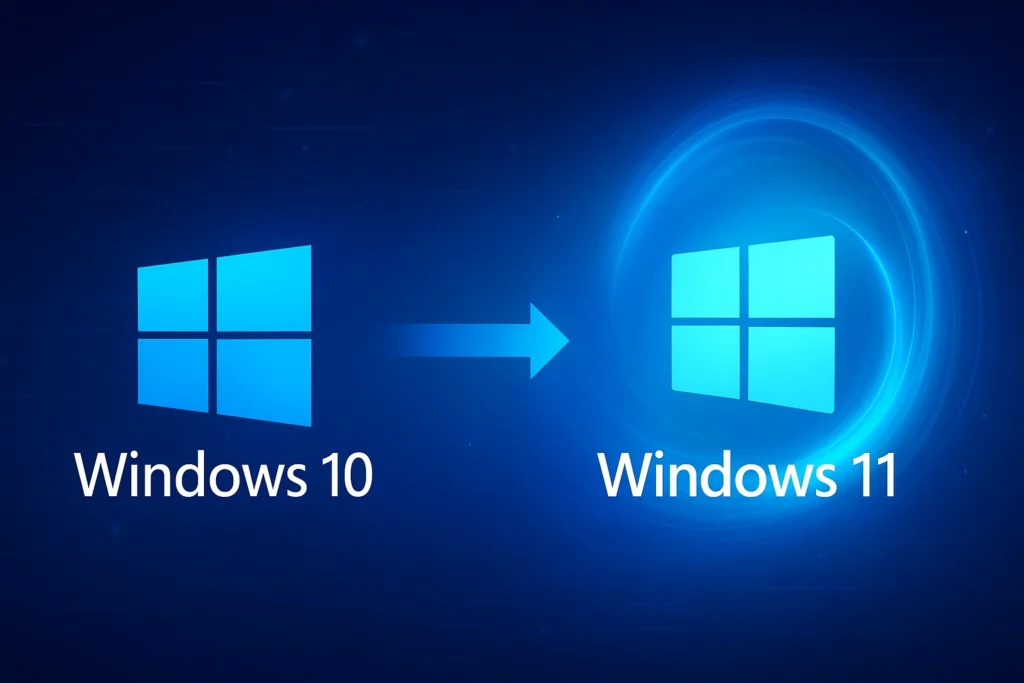
Microsoft has confirmed that Windows 10 is nearing the end of its update lifecycle, marking a major shift for millions of users worldwide. If you’re still using Windows 10, it’s crucial to understand what this means, how to move to Windows 11, and what happens if you choose not to upgrade.
This guide explains everything – from the official end-of-support date to a step-by-step upgrade plan.
Windows 10 End of Support: What’s Changing?
Microsoft officially announced that Windows 10 support has ended on October 14, 2025. After that date:
- No more security updates or patches
- No new features or improvements
- No ongoing bug fixes or technical support
In plain terms, Windows 10 will continue to run, but it will no longer be secure or fully compatible with new apps and devices.
If you continue using it after 2025, your PC will be more vulnerable to viruses, ransomware, and emerging online threats.
Why Microsoft Is Moving On from Windows 10
When Windows 10 launched in 2015, it was hailed as “the last version of Windows.” But with technological advances in AI, cloud services, and cybersecurity, Microsoft decided it was time for a new platform.
Windows 11 was introduced to bring a more secure, modern, and productivity-focused experience.
Key Reasons for the Transition
- Enhanced Security:
Windows 11 features TPM 2.0, Secure Boot, and advanced protection layers against malware and phishing. - Modern Performance:
Faster startup times, better memory management, and power efficiency. - Redesigned Interface:
A centered taskbar, rounded corners, and cleaner design for distraction-free work. - AI-Powered Productivity:
Built-in Copilot AI assistant helps with writing, scheduling, and multitasking.
How to Move from Windows 10 to Windows 11
Upgrading from Windows 10 to 11 is easier than ever. Here’s how to do it safely:
Step 1: Check If Your PC Is Compatible
Before upgrading, ensure your system meets Windows 11’s minimum requirements:
- Processor: 1 GHz or faster, 2+ cores (64-bit)
- RAM: 4 GB or more
- Storage: 64 GB or more
- TPM: Version 2.0
- Secure Boot: Enabled
👉 Use Microsoft’s PC Health Check Tool to verify compatibility.
Step 2: Back Up Your Data
Before upgrading, back up important files using OneDrive, an external hard drive, or another cloud service. This ensures your files remain safe in case anything goes wrong during the installation.
Step 3: Upgrade Through Windows Update
- Go to Settings → Update & Security → Windows Update
- Click Check for updates
- If Windows 11 appears, select Download and install
The process typically takes 30–60 minutes.
Step 4: Use Microsoft’s Installation Tools (If Needed)
If the update doesn’t show up automatically, you can manually upgrade using:
- Windows 11 Installation Assistant (for direct upgrade)
- Media Creation Tool (for a clean installation via USB)
What Happens If You Don’t Upgrade?
If you continue using Windows 10 beyond October 2025, your PC will still work, but there are major downsides:
1. Security Vulnerabilities
Without regular patches, new cyber threats won’t be blocked. Your system becomes a target for hackers and malware.
2. App and Driver Compatibility Issues
Software developers and hardware manufacturers will eventually stop supporting Windows 10. Expect more crashes, driver issues, and outdated apps.
3. No New Features or Improvements
Microsoft will continue to innovate exclusively for Windows 11- including new AI integrations, design upgrades, and security advancements.
4. Paid Extended Security Updates (ESU)
For businesses and enterprises, Microsoft may offer paid ESU plans for an additional few years. However, these won’t be available for most home users.
Can You Keep Using Windows 10?
Yes, but with limitations. You can keep using it after support ends, but doing so is not recommended. Think of it like driving a car without regular maintenance it’ll run, but with increasing risks.
If your PC isn’t compatible with Windows 11, consider your options:
- Buy a new PC with Windows 11 preinstalled.
- Upgrade hardware (if TPM 2.0 or Secure Boot can be enabled).
- Install a lightweight OS such as Linux for older hardware.
Why Upgrading to Windows 11 Is Worth It
Still unsure? Here’s why upgrading is the smarter move:
- Modern security features to protect your data
- Smoother performance and longer battery life
- AI-powered tools like Copilot and voice typing
- Optimized gaming experience with Direct Storage and Auto HDR
- Beautiful, minimalist design for everyday productivity
Final Thoughts: Prepare for the Future of Windows
The Windows 10 updates shutdown marks the end of an era – but also the beginning of a faster, safer, and smarter computing experience.
By upgrading to Windows 11 now, you’ll:
- Stay secure and supported
- Enjoy cutting-edge features
- Ensure long-term compatibility
Don’t wait until the last minute. Make the move today and future-proof your digital workspace.